After you submit, everything happens in My submissions: you follow each project you proposed and upload the documents our origination team asks for. There is no password: you sign in with your email and a code.
1
After you submit
Confirmation and your owner area
EvenFi
We send a confirmation email to the address you entered in the form.
You
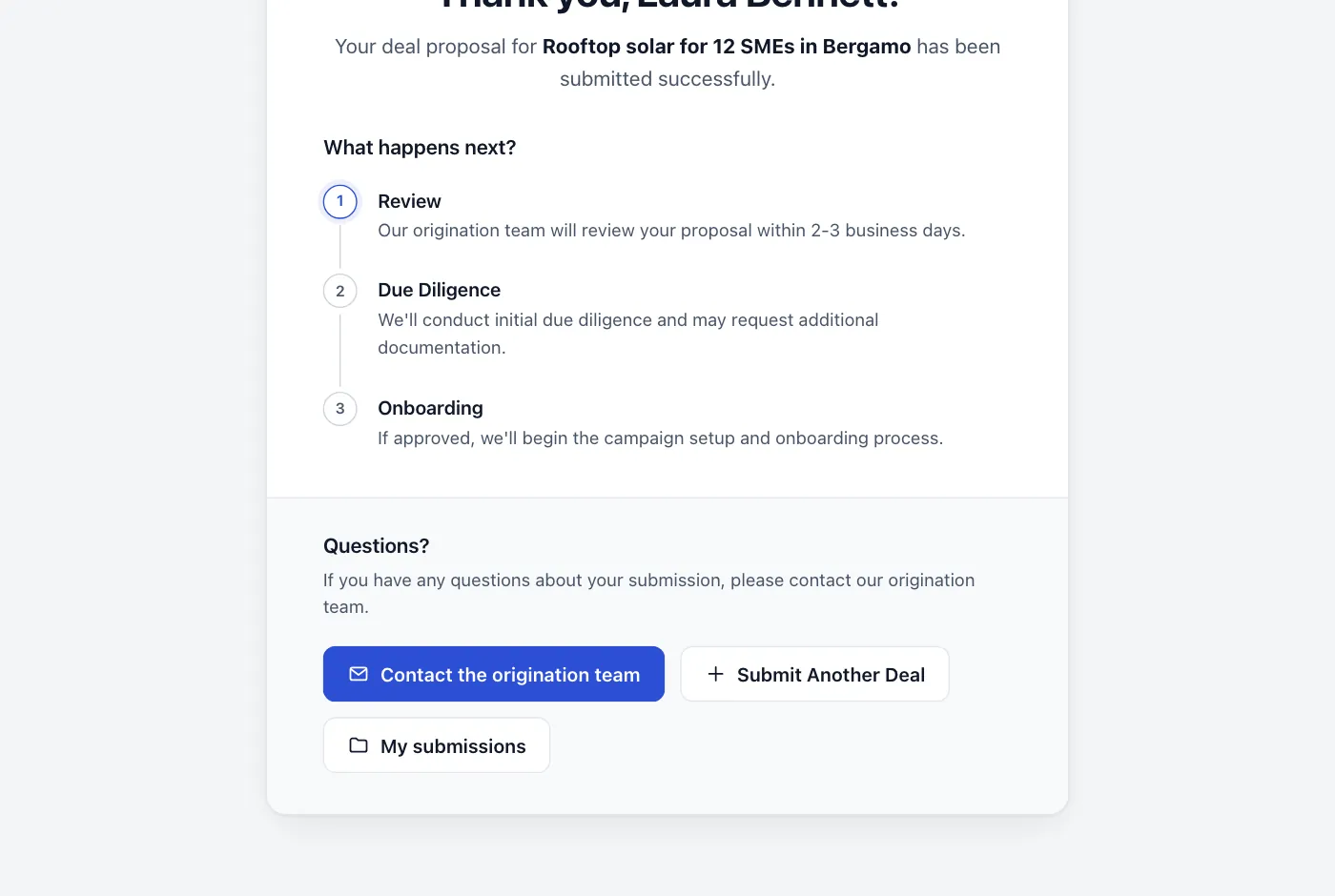
To follow your submission, open My submissions. You find it on the thank-you page after you submit, and on the welcome page of the form: Access my submissions.
1Thank you
After you submit, select My submissions to open your owner area.
2
Signing in
Sign in with a code, no password
You
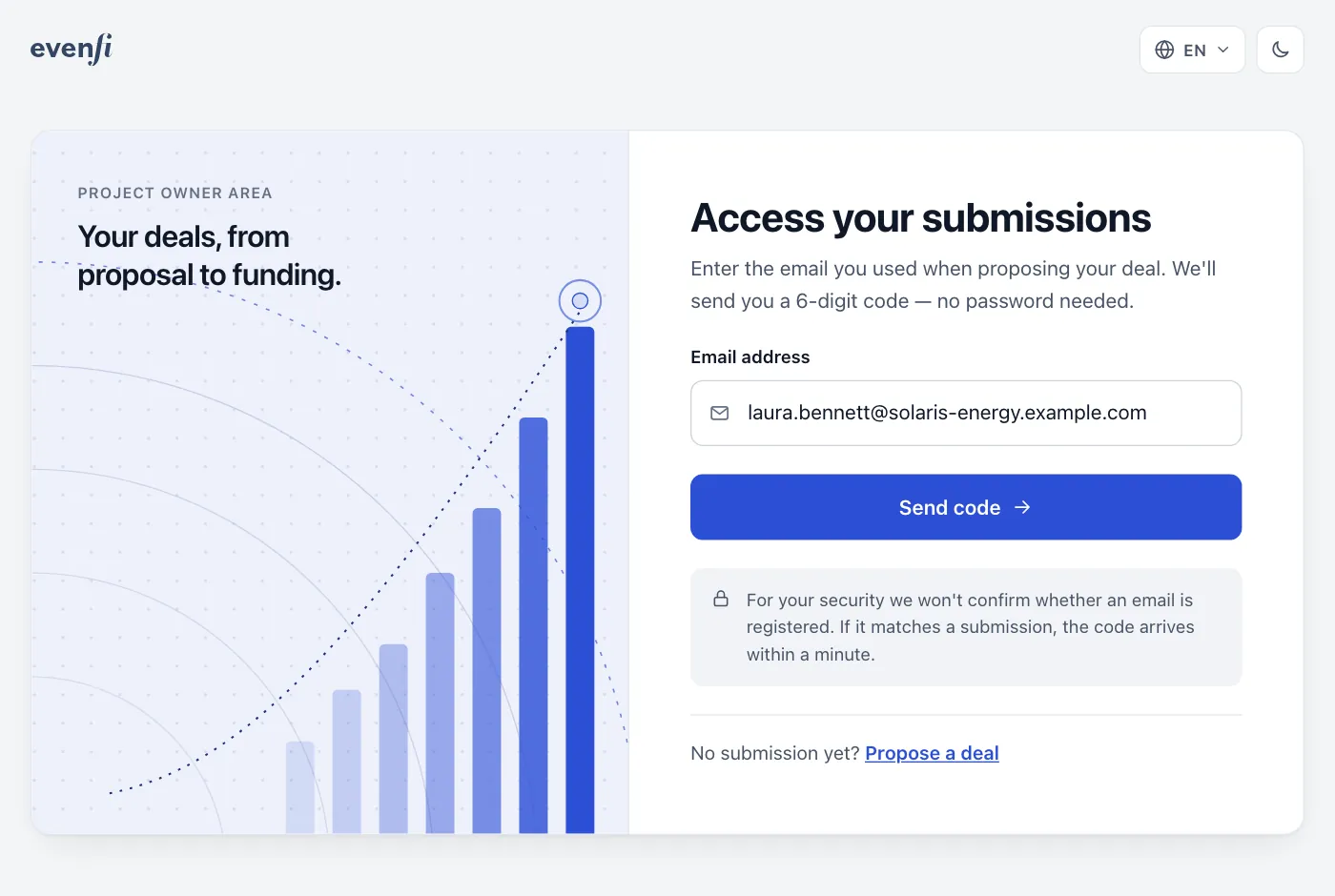
Enter the email address you used in the form and select Send code.
EvenFi
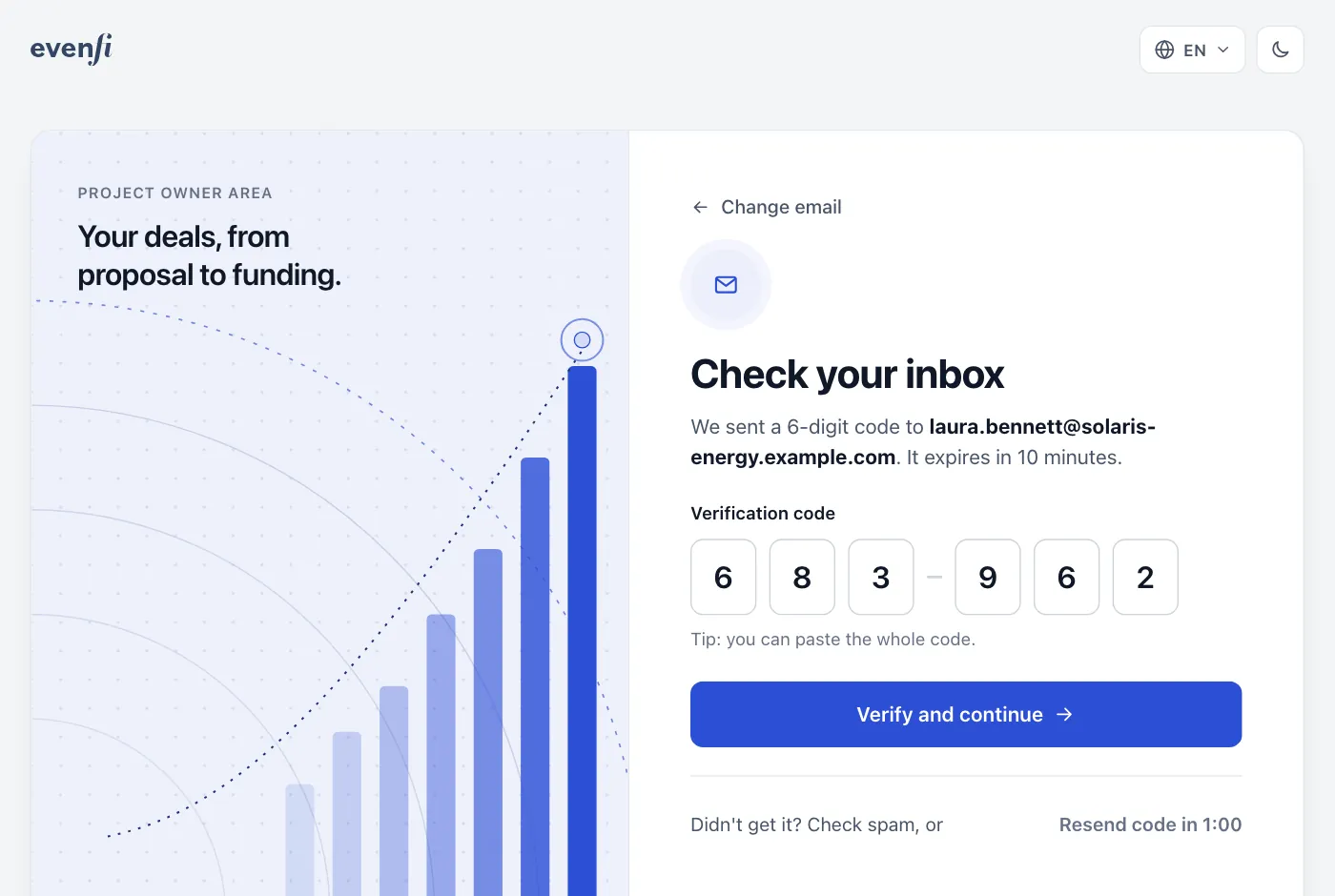
We email you a 6-digit code. It is valid for 10 minutes.
You
Enter the code and select Verify and continue. You can also paste the whole code at once.
1Access your submissions
Enter your email address and select Send code.
2Check your inbox
Enter the 6-digit code you received by email.
Tip No code? Check your spam folder, then select Resend code (available after one minute). For your security, we never say whether an email address is registered.
3
Document request
When we need documents from you
EvenFi
When our origination team needs documents, for example for the due diligence, we email you the list of documents with an Upload documents button.
You
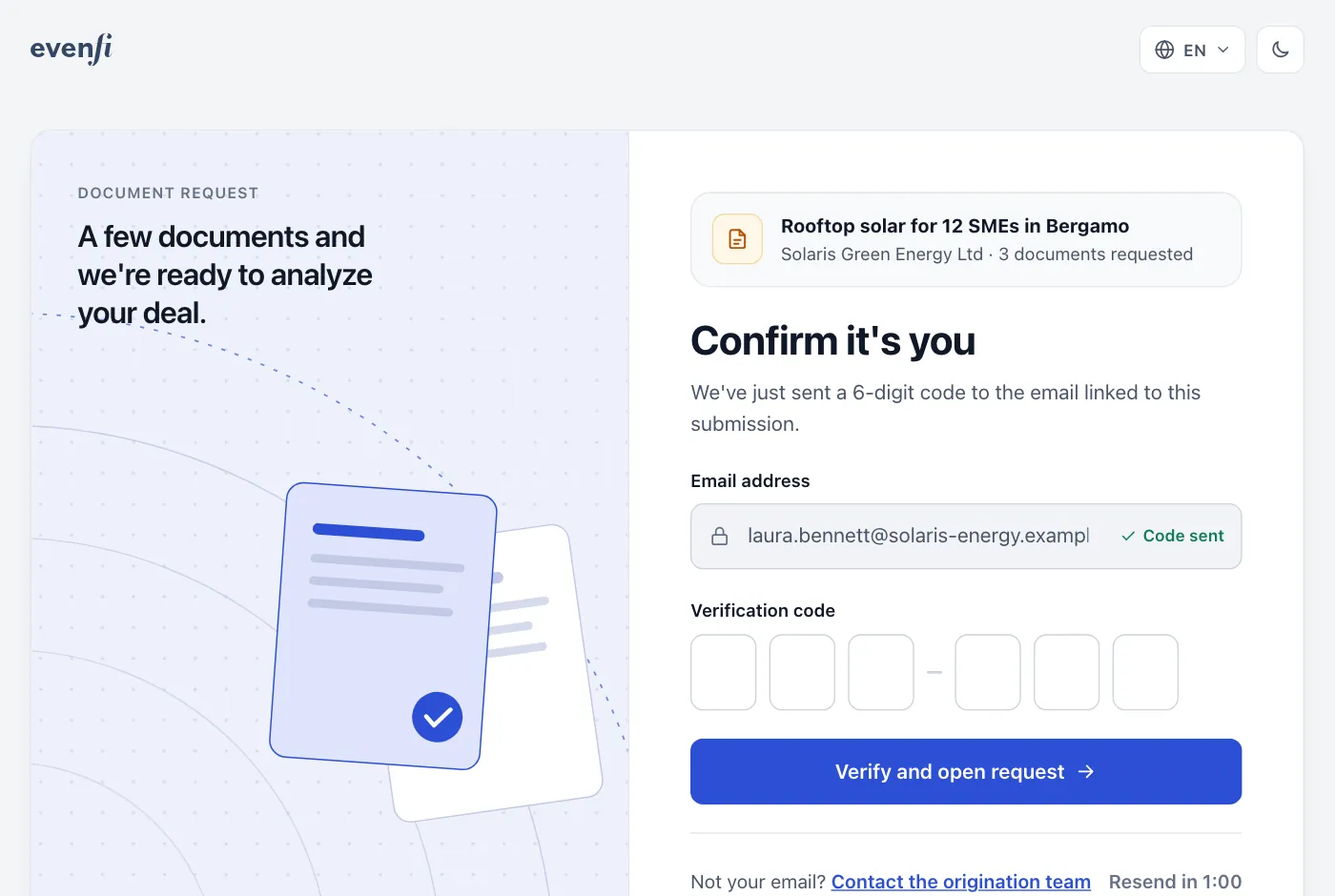
Open the link in the email. To confirm it’s you, we send a 6-digit code to the same email address: enter it and the request opens.
Personal link — only the email address of the submission receives the code, so the link is useless to anyone else.
Expiry — the link stops working after a few days, or once the request is complete. In that case you see This link has expired: select Sign in with my email and find the request in My submissions.
1Confirm it's you
The link from the email shows the project and the number of documents requested, and asks for the code we just sent you.
4
Your submissions
All your submissions at a glance
You
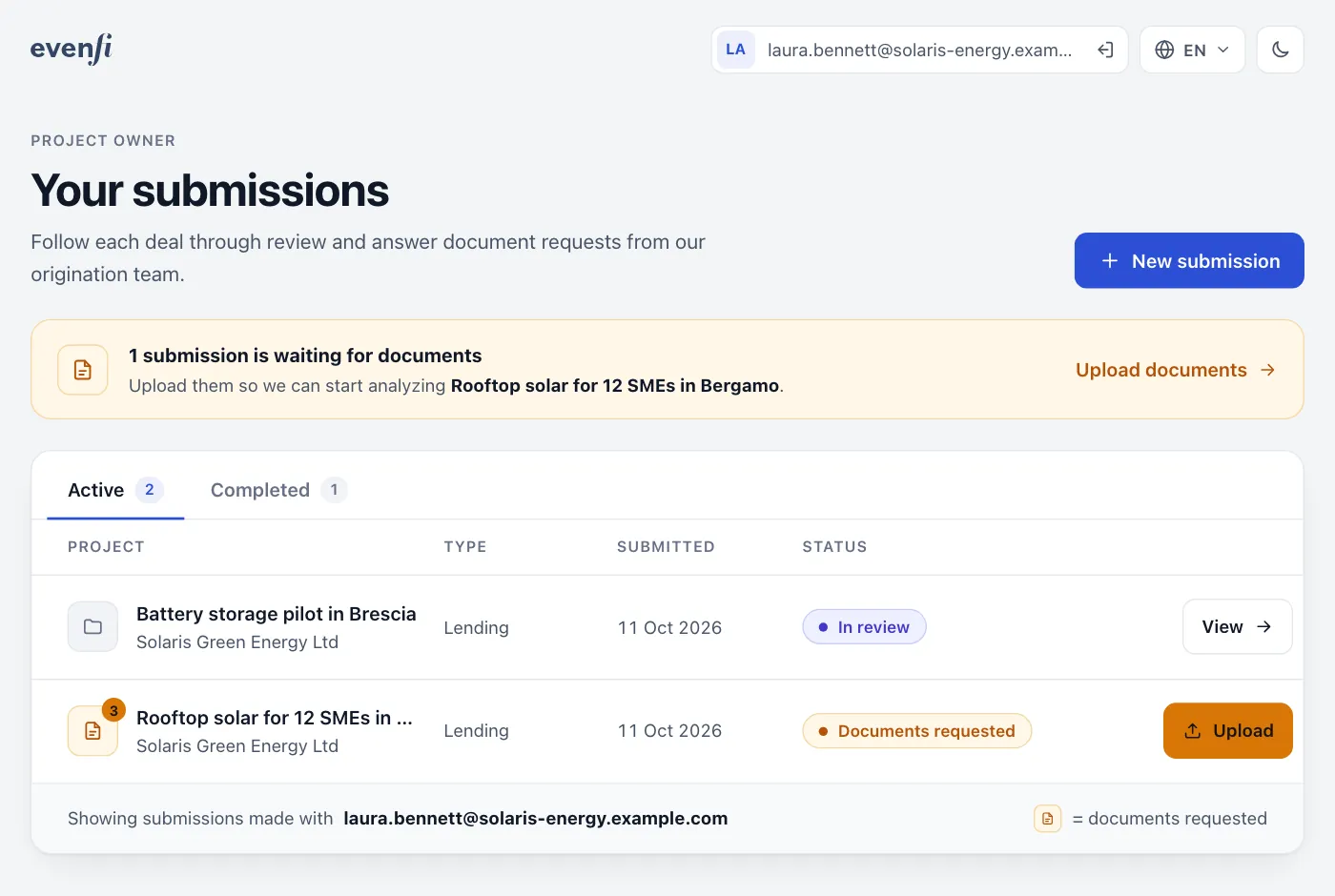
The list shows every project you submitted with your email address: Active for the ones in progress, Completed for the closed ones. A banner at the top tells you when we are waiting for documents.
Submitted — we received your proposal.
In review — our origination team is reviewing it.
Documents requested — we need documents from you: select Upload.
Analyzing — we received all the documents and are analyzing your deal.
Approved — your deal was approved: we prepare the service contract and the campaign together.
Campaign live — your campaign is published and open to investors.
Funded, Not funded, Not selected or Withdrawn — the final outcome. These submissions move to Completed.
You
Select View to open a submission: its status page shows where your deal stands (Review, Documents, Analysis, Onboarding, Campaign).
1Your submissions
Your projects with their status. The project waiting for documents has an Upload button.
5
Uploading documents
Upload the requested documents
You
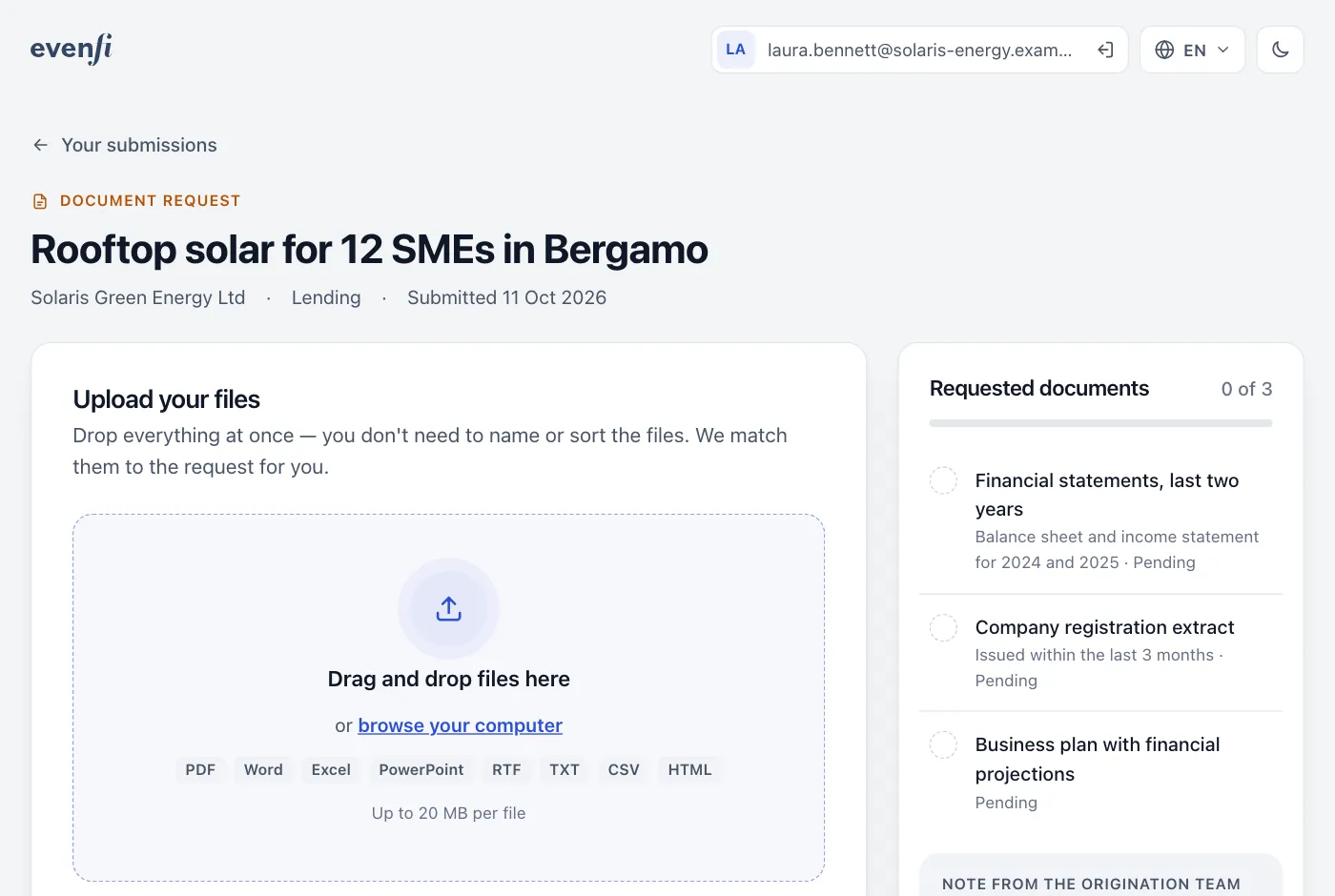
Select Upload documents. On the right, under Requested documents, you see what we asked for, with any Note from the origination team.
Add your files — drag and drop them onto the page, or select browse your computer. Add everything at once: you don’t need to rename or sort the files.
Formats and size — PDF, Word, Excel, PowerPoint, RTF, TXT, CSV and HTML, up to 20 MB per file and 30 files per request. Scans are fine if they are readable.
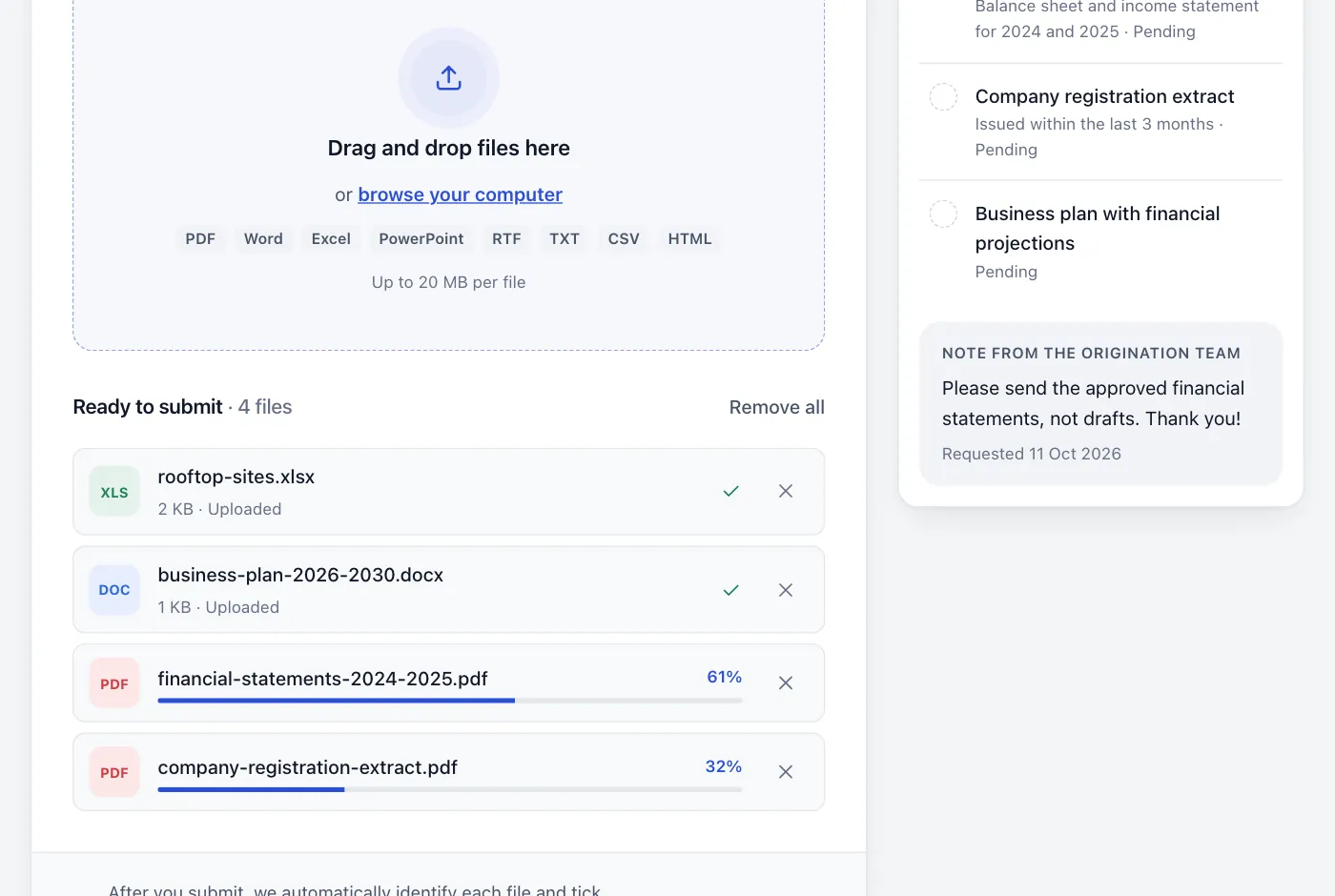
Upload — each file shows its progress, then Uploaded. You can remove a file until you submit.
Submit — when all files are uploaded, select Submit.
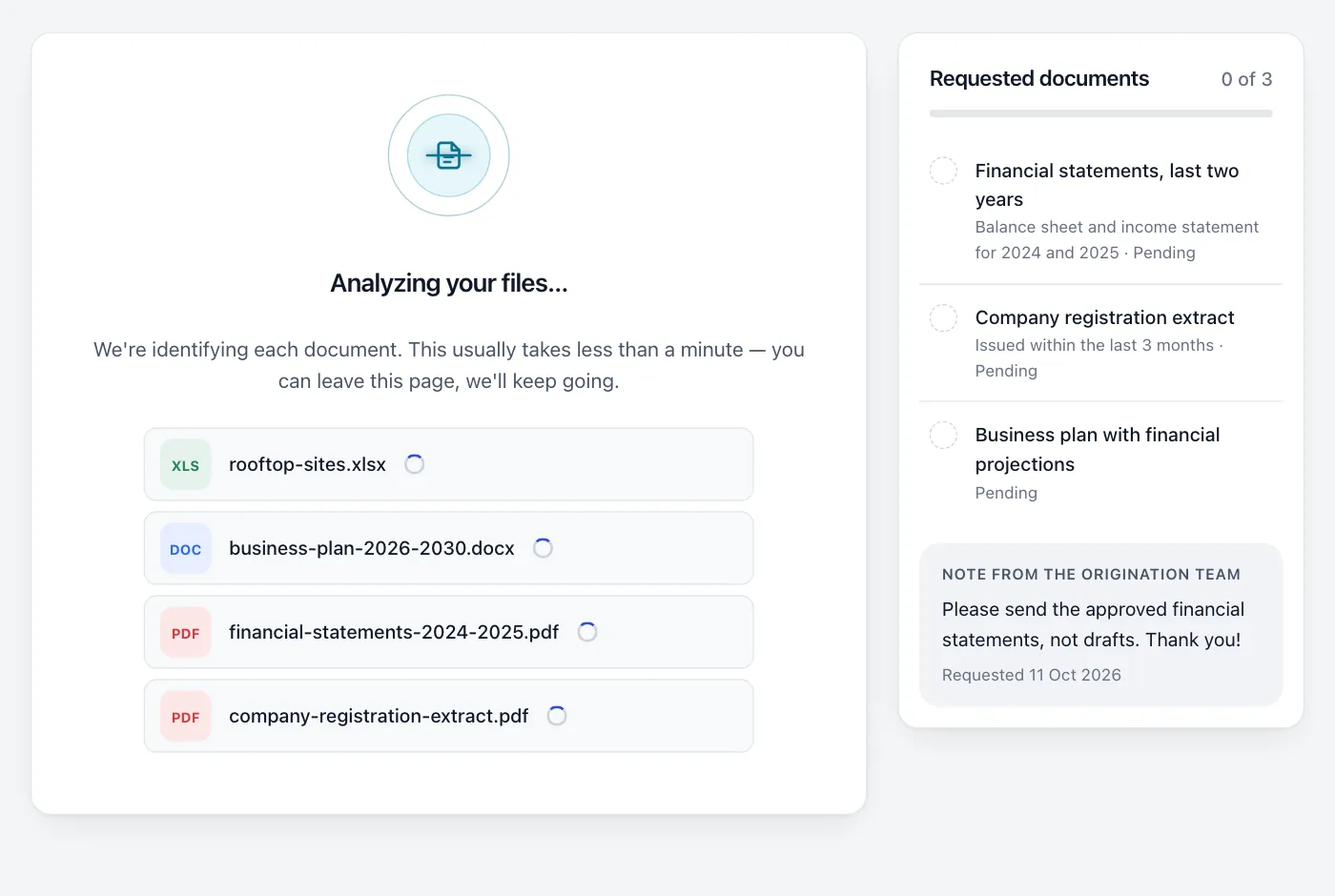
Automatic check — we identify each file and tick it off the list. This usually takes less than a minute, and you can leave the page in the meantime.
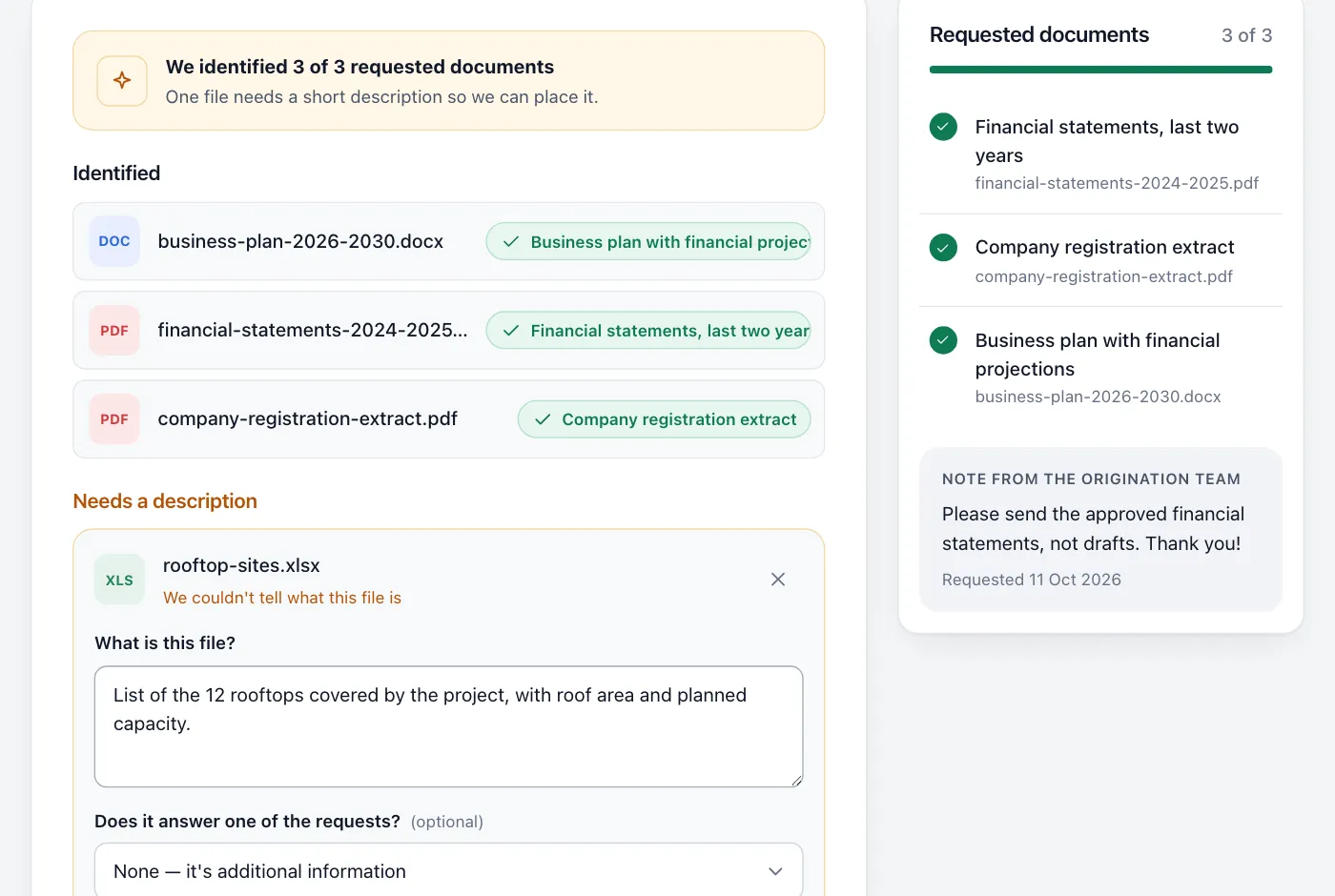
Review — if a file wasn’t recognized or a document is still missing, you see what we identified. Describe the file under What is this file?, choose which request the file answers, or upload more files, then select Submit.
1Upload your files
The documents we asked for are on the right. Drag your files onto the page or browse your computer.
2Ready to submit
Each file shows its upload progress. When they are all uploaded, select Submit.
3Analyzing your files…
We identify each document. You can leave the page: we keep going.
4Needs a description
A file we couldn’t place: describe it, choose which request it answers, then select Submit.
Tip One file per document, with a readable scan or the original PDF, helps us identify everything at the first attempt.
6
Documents received
Everything received: we analyze your deal
EvenFi
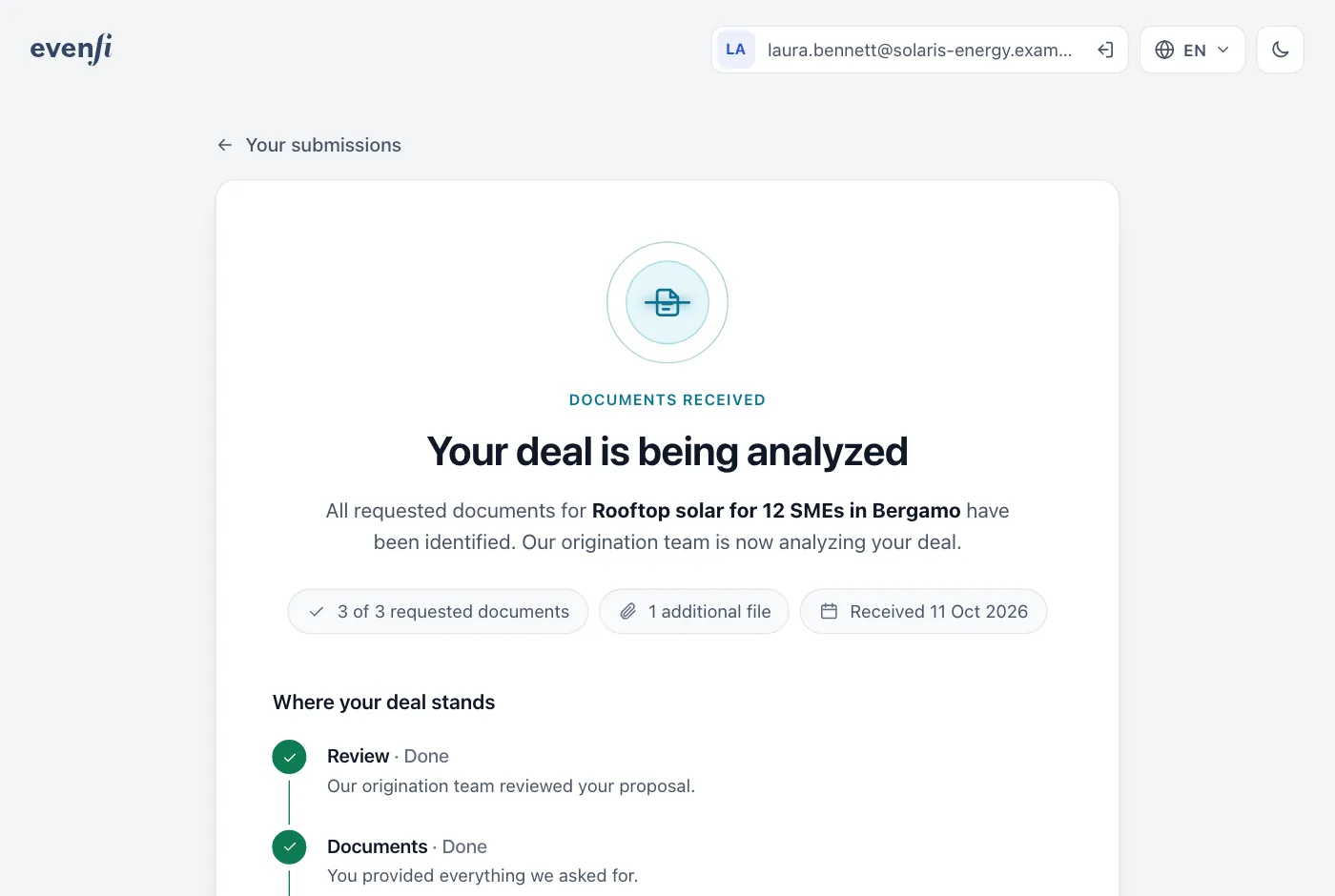
When every requested document has been identified, we send you a confirmation email and the submission moves to Analyzing: our origination team is analyzing your deal.
EvenFi
We may contact you with questions. If we need anything else, you receive a new document request by email.
You
Nothing else to do for now. We email you at each update, and you can follow progress any time in My submissions.
1Your deal is being analyzed
The status page confirms the documents received and shows where your deal stands.
Tip If the analysis is positive, the evaluation continues with the next steps of Phase 2, up to the service contract.